Set Power BI Row-Level Security to SAP Cost Center
How to implement dynamic Row-Level Security (RLS) in Power BI using SAP authorization tables — restricting data access by cost center based on the logged-in user.

Radek Řezáč
In organisations where data is shared across departments, restricting access to only relevant information is critical. Power BI provides two complementary security mechanisms: Row-Level Security (RLS) and Object-Level Security (OLS). This article focuses on dynamic RLS driven by SAP authorization data.
Row-Level Security
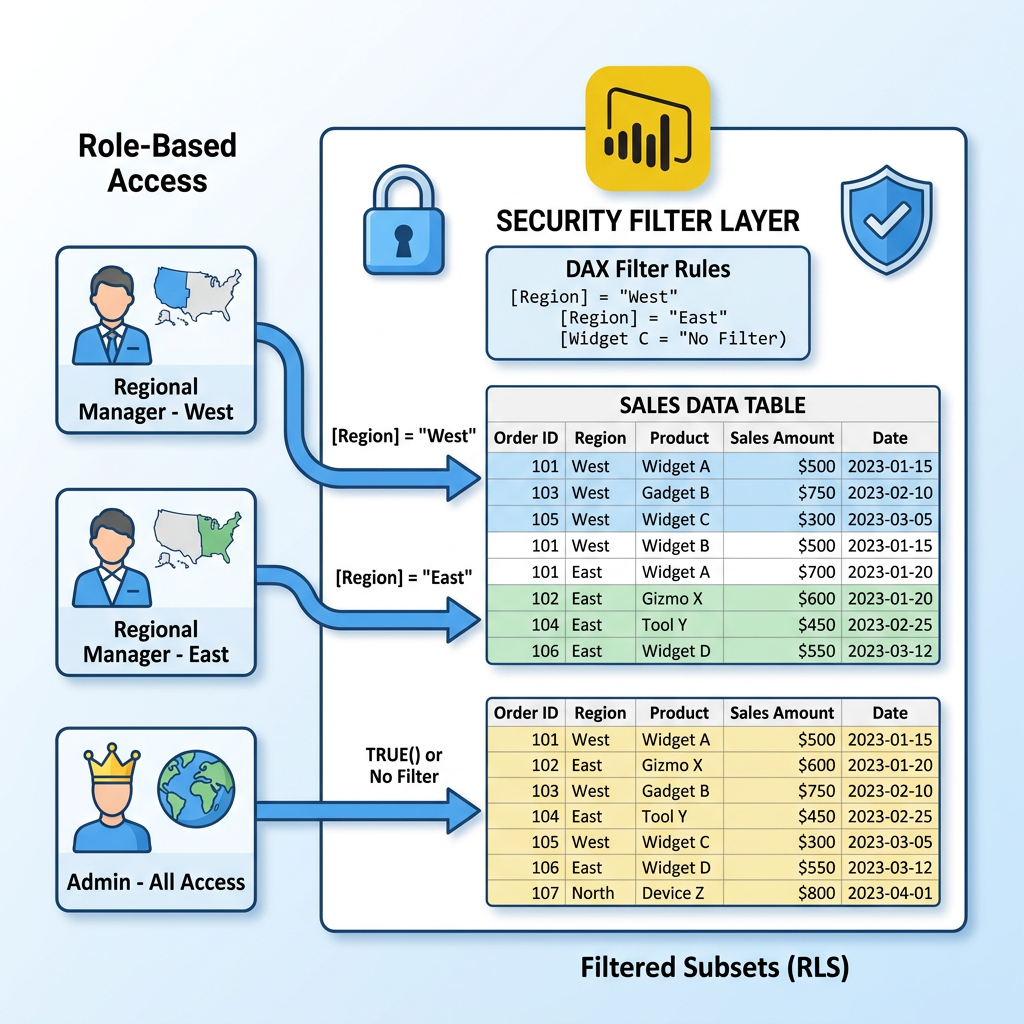
RLS restricts access to rows in a table based on the identity of the user viewing the report. Rather than maintaining separate reports for different user groups, RLS applies filters at the data model level — each user sees only what they are permitted to see.
RLS operates within the Power BI data model and ensures that restricted data cannot be accessed even indirectly through slicers or drill-downs.
Setting Up Role-Level Security
- Create Roles — use DAX to define roles with filters. For example, a "Territory Manager" role that filters to only their region.
- Test — use the View As feature in Power BI Desktop to verify that filters work correctly for each role.
- Deploy — publish the report to Power BI Service and assign users to roles.
Static vs. Dynamic RLS
Static RLS
Roles with hardcoded DAX filters. Each role corresponds to a fixed group or segment.
Example:
[Region] = "East"
Assign specific users to the "Region_East" role in Power BI Service.
Dynamic RLS
Uses USERNAME() or USERPRINCIPALNAME() combined with a mapping table to dynamically filter data based on the logged-in user identity.
Steps:
- Create a mapping table with columns: user email, access regions, display name
- Write a DAX filter:
[Region] = RELATED(UserRegion[Region]) - Filter by logged-in user:
UserRegion[Email] = USERPRINCIPALNAME()
Example: RLS Based on SAP Cost Center Assignments
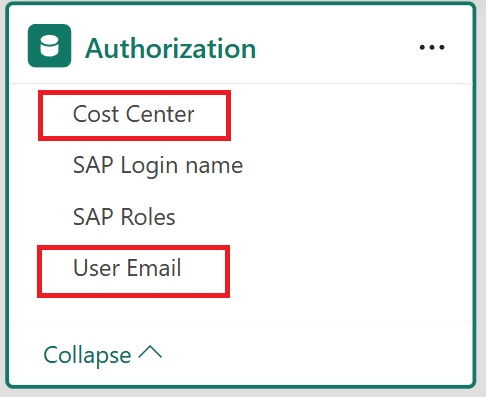
In organisations using SAP, business roles contain cost center assignments per user. The authorization table derived from SAP contains the user's email address paired with each assigned cost center (one row per cost center per user).
DAX Filter for Dynamic Cost Center RLS
The following measure uses USERPRINCIPALNAME() as the logged-in user and checks whether the current cost center is in the set of cost centers assigned to that user:
VAR Logged_User = LOWER(USERPRINCIPALNAME())

RETURN
    CALCULATE(
        COUNTROWS('Cost Center'),
        'Cost Center'[Cost Center Key]
            IN CALCULATETABLE(
                VALUES(Authorization[Cost Center]),
                FILTER(
                    ALL(Authorization),
                    [User Email] = Logged_User
                )
            )
    ) > 0
Apply this as the table filter expression for the Cost Center role. The logged-in user then sees only data linked to their assigned cost centers.

Key Points
USERPRINCIPALNAME()returns the email/UPN of the currently authenticated user in Power BI ServiceLOWER()normalises casing to avoid mismatches between SAP and Azure AD email formats- The authorization table acts as the single source of truth — updating SAP role assignments automatically propagates to Power BI access without touching the report
- Users cannot see data outside their cost center assignments, even by manipulating slicers or visual filters