
Orchard Core Shapes: Demystifying the View Data Model
How Orchard Core Shapes work as a dynamic view data model — creating, rendering, and extending shapes with data, metadata, Liquid templates, and strongly typed models.

Radek Řezáč
Orchard Core doesn't render HTML directly. Instead, it renders Shapes — objects that represent what to render and carry all the data and metadata needed to produce HTML. Understanding shapes is fundamental to customising and theming Orchard Core applications.
What Is a Shape?
A shape is an object implementing the IShape interface. It is a dynamic data model containing:
- Data — values that will be rendered by ASP.NET views
- Metadata — instructions on how to render (template name, alternates, placement, etc.)
Benefits of the Shape System
- No view name is hard-coded — the view name is derived from the shape type
- Priority-based view resolution via Alternates (multiple templates can match the same shape, resolved in priority order)
- Theming — user-defined templates (views) override default ones without modifying core
- Dynamic caching
- Wrapping and placement (zones, ordering)
- Multiple data sources (database, files, code)
- Event-driven rendering pipeline
Creating and Rendering Shapes
The basic flow for creating and rendering a shape programmatically:
// 1. Create a shape by shape factory
var factory = context.RequestServices.GetRequiredService<IShapeFactory>();
var shape = await factory.CreateAsync("Car");

// 2. Render to HTML via display helper
var displayHelper = context.RequestServices.GetRequiredService<IDisplayHelper>();
var htmlContent = await displayHelper.ShapeExecuteAsync(shape);

// 3. Create a view matching the shape name: Car.cshtml

// 4. Write HTML to response
await using var sw = new StreamWriter(context.Response.Body);
htmlContent.WriteTo(sw, HtmlEncoder.Default);
Code for this pattern is available on GitHub: Test_Shape_With_Razor_View
Rendering Shapes with Liquid Templates
Liquid is a secure, flexible templating language ideal for dynamic content generation in Orchard Core.
To use Liquid templates instead of Razor views, add the OrchardCore.DisplayManagement.Liquid package and register AddLiquidViews() in Program.cs. Orchard Core will resolve a Car.liquid template for a shape of type "Car".
Adding Data to Shapes
The IShape interface exposes a Properties dictionary (IDictionary) where you store data accessible in templates via the Model object:
shape.Properties["Brand"] = "Renault";
shape.Properties["Color"] = "Red";
In the template, data is accessed as Model.Brand (not Model.Properties["Brand"]) because the DynamicObject-based Compose class implements TryGetMember, enabling direct property access.
Code: Test_ShapeData_With_Liquid_Template
Strongly Typed Shapes
For better performance and IDE support, use the generic CreateAsync<T> overload to bind a POCO class to the shape:
public class Car
{
    public string? Brand { get; set; }
    public string? Color { get; set; }
}

var shape = await factory.CreateAsync<Car>("Car", c =>
{
    c.Brand = "Renault";
    c.Color = "Red";
});
In the view, type the model directly:
@using OrchardCore.DisplayManagement;
@model Car

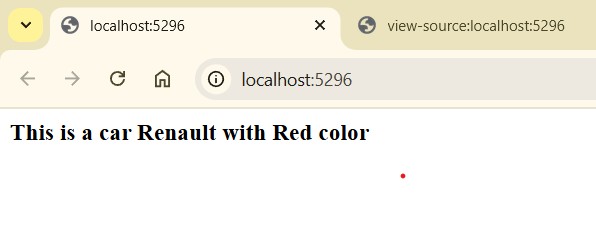
This is a car @Model.Brand with @Model.Color color
Adding Metadata to Shapes
IShape metadata controls how the shape is wrapped in HTML. Key properties:
shape.Id = "my-renault";
shape.TagName = "h3";
shape.Classes.Add("car");
shape.Classes.Add("brand-renault");
shape.Attributes.Add("data-brand", "renault");
Render the metadata in a Razor template using the tag builder helper:
@using OrchardCore.DisplayManagement;
@model Car

@{
    var shape = Model as IShape;
    var tagBuilder = shape.GetTagBuilder();
}

@tagBuilder.RenderStartTag()
This is a car @Model.Brand with @Model.Color
@tagBuilder.RenderEndTag()
The resulting HTML:
The HTML source shows the metadata-driven output:

Code: Test_Shape_With_Metadata
References
Microsoft Fabric as an All-in-One Analytics Solution
A deep dive into Microsoft Fabric — OneLake, Workspaces, Lakehouse, Warehouse, Apache Spark, and how it compares to Data Mesh and decentralised approaches.
Power BI DAX Masterclass
Best practices and key patterns for Power BI DAX: calculated columns vs. measures, date tables, iterator functions, CALCULATE, time intelligence, and more.